

How to Add Trusted Connections on Roblox


TL;DR
To add trusted connections on Roblox, both accounts need to complete the age check first. After that, you can add each other with a live QR scan, the contact importer on mobile, or a Trusted Friends invite link from your friend's profile. Roblox now calls this feature Trusted Friends, but the steps are the same. Users under 13 need a parent to approve every request, and availability still depends on your country.
Roblox changed Connections back to Friends in April 2026, as announced in its Friends are Back newsroom post, so Trusted Connections became Trusted Friends. Most guides still use the old name, so the menus on your screen may not match what you read. The feature works the same way; only the labels changed.
In this article, we'll explore what trusted connections are, every method to add one, the age rules for each group, and how to remove them.
What Are Trusted Connections on Roblox?
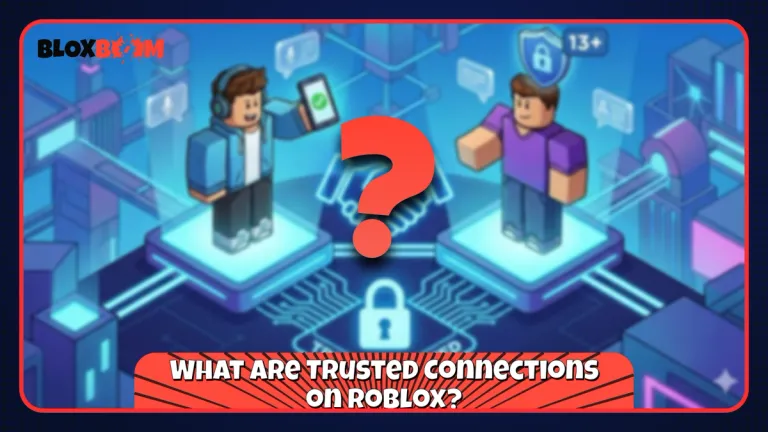
Trusted connections are a smaller group inside your friends list made up of people you know and trust. The status is two-way, so both users have to agree to it. If either person removes it, the relationship goes back to a regular friendship.
What you unlock depends on your age group and region. Trusted friends can use Party Voice and chat without filters, work together in Team Create in Roblox Studio, and be selected as a specific audience in your privacy settings. Chat inside experiences keeps the standard filters, and Roblox still monitors every conversation for serious harm, trusted friends included. You can spot a trusted friend by the Trusted label next to their username on their profile and in chat.
Also Read: Can You Play Roblox on Nintendo Switch?
How to Add Trusted Connections on Roblox
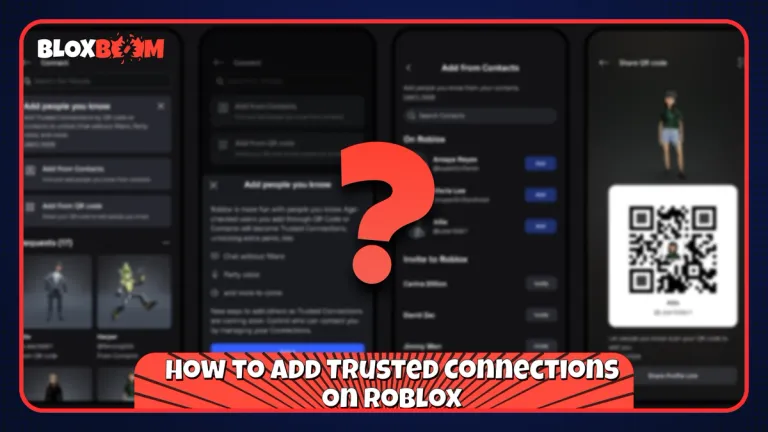
Roblox lists several methods in its official guide, How do I add trusted friends?, and the one you can use depends on your age and your friend's age.
Complete the Age Check
Trusted friend options stay hidden until your age is estimated. Open Settings, go to Account Info, and start the age check with a short selfie video. If you are 13 or older, you can use ID verification instead. Your friend has to do the same on their account.
Scan a Live QR Code
This is the easiest method when you are with the person. Go to Home, tap Add Friends (+), and select My QR. Your friend scans it with their phone camera or with the camera scanner icon at the top right of the My QR page. If you are already friends, the scan asks you to upgrade them to a trusted friend.
The scan has to be live. A screenshot of the code or a shared profile link only adds the person as a regular friend.
Use the Contact Importer
This method is mobile only. Go to Home, tap Add Friends (+), and choose Contacts. Pick the person from your phone contacts, or accept a request they sent you from their own contacts. Roblox needs permission to access your contacts for this to work.
Send an Invite Link
If both accounts are age-checked and 13 or older, open your friend's profile, tap the three-dot menu, select Add trusted friend, and choose Add via link. Share the link outside Roblox. It expires after 30 days, and the status is final once your friend accepts through that link.
Upgrade From Their Profile
If you are both 16 to 17, or both adults, you can upgrade directly. Open the profile, tap the three-dot menu, and select Add trusted friend. The other person accepts through their notifications or your profile. This option is not available to every 16 to 17 account yet.
Also Read: How to Trade in Grow a Garden (2026)
Trusted Connection Rules by Age Group

Users Under 13
Children can pick their trusted friends, but a parent must approve every request. On the child's account, open the friend's profile, tap the three-dot menu, select Add trusted friend, then Add, then Ask now. The parent gets an email and has 24 hours to select Allow or Don't Allow. If the friend is also under 13, their parent has to approve it too. Parents who want a wider look at Roblox safety can read the BloxBoom Parent's Guide.
Teens 13 to 17
Teens can use the QR scan, the contact importer, or an invite link. When an adult is involved, these three real-life methods are the only way to become trusted friends. In some regions, parental approval also applies to older teens.
Adults 18 and Older
Two age-checked adults can upgrade each other with the profile method. Their 1:1 chats also upgrade to expressive chat, including voice calls and no filters, automatically, so trusted status is not needed for that. To add a teen, an adult must use the contact importer, a live QR scan, or an invite link.
Parents and Children
If a parent and child have linked accounts, both are age-checked, and they are already friends, Roblox automatically upgrades them to trusted friends.
How to Remove Trusted Connections on Roblox
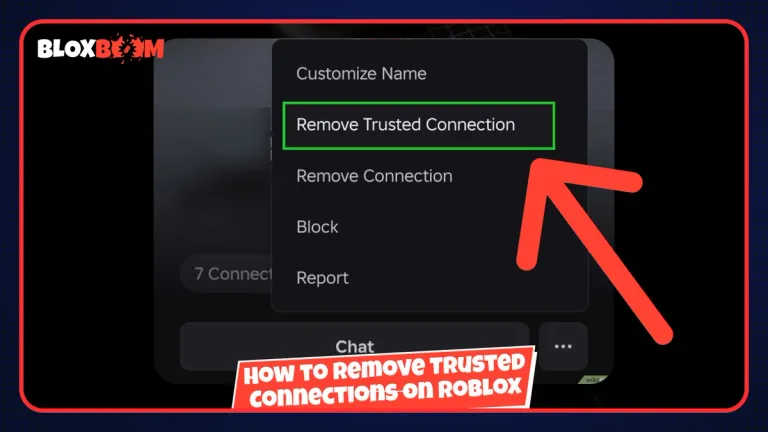
Open the person's profile menu and tap Remove trusted friend to return them to a regular friend. Tap Remove friend instead to take them off your list completely. To see who is currently trusted, open the Friends tab and select the Trusted filter. You can report a trusted friend at any time, the same as any other user.
Trusted Option Not Showing
There are three usual causes. One of the accounts has not finished the age check, the feature has not reached your country yet, or you picked a method that your friend's age group does not allow. If your trusted friends list disappears, complete ID verification first, since that often restores it. If the list is still missing, contact Roblox Support. The full details are in Roblox's Unlocking trusted friends page.
Also Read: More Roblox Guides on the BloxBoom Blog
Conclusion
Adding trusted connections on Roblox comes down to one step done in the right order: finish the age check on both accounts before you try any method. If you are together, a live QR scan is the fastest option. If you are apart, use the contact importer or an invite link before it expires. When the option does not appear, check your country and your friend's age group before assuming something is broken.